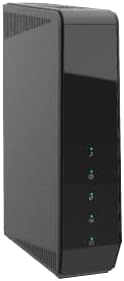
How to Change the Wi-Fi Password on the Sercomm DG4244 Modem
If you are using a Sercomm DG4244 rental modem from SimplyNet, it will arrive with a default Wi-Fi network name (SSID) beginning with Sercomm-, and a default password printed on the modem's sticker. Many customers prefer to customize both after receiving the modem. Here's how to do it.
Applies to: Sercomm DG4244 modem. If you have a CBN CH8568, see this guide instead.
Connect to the Network
Connect your computer or smartphone to your Sercomm network by Wi-Fi or Ethernet cable (Ethernet is recommended for modem configuration).
Access the Admin Portal
Open a web browser and navigate to http://192.168.0.1. You should see a login page with fields for username and password.
Log In to the Admin Portal
Locate the sticker on the back or bottom of your modem. Find the Username (admin) and Password (the admin password — this is different from your Wi-Fi password).
When you log in, you may see a popup asking you to change the modem's admin password. Click OK on the first popup, then CANCEL on the next window.
Do not change the admin password unless you're sure you'll remember it. If you lose it, you'll be locked out of the modem settings.
Navigate to Wireless Settings
Go to the Gateway tab, then select Connection > Wi-Fi.
Change the Password (and Network Name)
- Click Edit on the 2.4 GHz or 5 GHz network (or both).
- Locate the Wi-Fi Password (or WPA Pre-Shared Key) field and enter your new password.
- Optionally, edit the Network Name (SSID) to something more personal.
- Click Save or Apply.
That's it! Note that all connected devices will disconnect once you save the new password, and you will need to reconnect them using the new credentials.
If you have trouble with this process, SimplyNet can generally help you make this change remotely as well. Contact support if you get stuck.